.png?width=100&height=47&name=Accelerator%20365%20Logo%20(Colour%20+%20No%20Text).png)
The Glossary app lets you bulk-manage your terms using CSV files - so you can export your entire glossary for editing or backup, and import new or updated terms in one go without having to add them one by one.
Jump to
- Import terms
- Export terms
- Download the import template
- CSV format and validation rules
- Related articles
Import terms
You can bulk-add or update terms by uploading a correctly formatted CSV file. The import process validates your file before writing any data, and processes terms in chunks to avoid list throttling.
To import terms:
- Open the SharePoint page containing the Glossary web part.
- Select Edit to enter edit mode on the page.
- Select the Import terms button in the glossary toolbar.
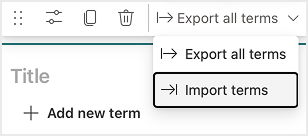
- The Import pop-up window will open. From here, you can choose Select File or drag and drop the prepared CSV file. You can also download the import template.
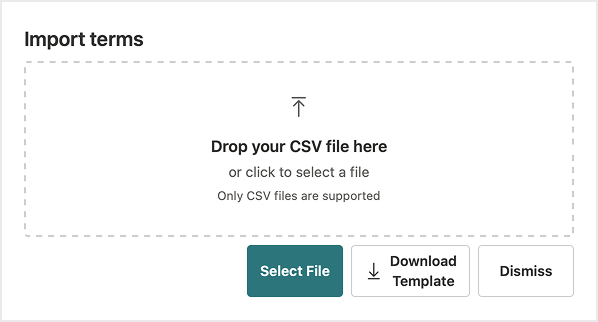
- The app will validate your file and display any errors before proceeding.
- If validation passes, select Import to begin the bulk write.
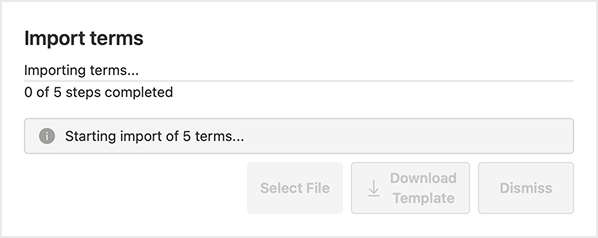
- A progress indicator will show the import status. Wait until the confirmation message appears before navigating away.
Export terms
You can export all your glossary terms - including their translations - to a CSV file at any time.
To export your terms:
- Open the SharePoint page containing the Glossary web part.
- Select Edit to enter edit mode on the page.
- Select the Export terms button in the glossary toolbar.
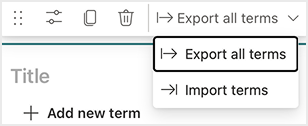
- The Export pop-up window will open. Select Download CSV to save the file to your device.
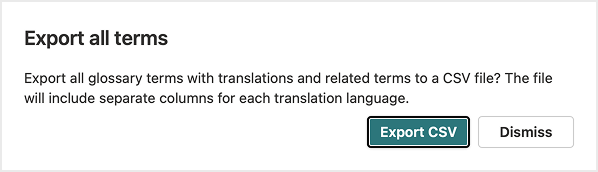
The exported file includes all terms and their translations in every configured language.
Download the import template
If you're preparing a new import file from scratch, you can download the official CSV template directly from the import pop-up window.
To get the template:
- Open the Import modal (see steps above).
- Select Download template to save the blank CSV file.
- Open the file in your preferred spreadsheet application and fill in your terms.
Using the template ensures your column headers and structure match exactly what the app expects.
CSV format and validation rules
The import file must follow the correct format or the web part will reject it. Here's what to keep in mind:
- The file must be a valid
.csvfile - not.xlsxor any other format. - Each row represents one term. Required fields are Title and Description.
- Duplicate terms (matching an existing term by title) are flagged during validation and handled according to the configured duplicate behaviour.
- Translations for additional languages can be included as additional columns - use the downloaded template to see the expected column names for each language.
- Very large files are processed in chunks automatically - you don't need to split them manually, but very large imports may take longer to complete.