.png?width=100&height=47&name=Accelerator%20365%20Logo%20(Colour%20+%20No%20Text).png)
We're always making improvements to our products, so you can usually expect one or more Accelerator 365 apps to receive an update every month. To help you stay on top of this, named contacts for our paying customers automatically receive an email on the last Friday of every month, letting you know which products have an update available.
You can also check for yourself at any time. There are two ways to see whether a new update is available for an Accelerator 365 app: from within the app itself, or from the SharePoint Admin Center, where you can see the update status for every installed app at once.
Checking an individual app
To check the update status of a specific app:
- Open the page containing the app and switch to edit mode.
- Select the app to open its property pane.
- Navigate to the Product information tab. Here you'll find the app's current version number, along with its update status.
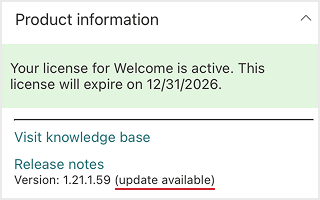
If an update is available, this will be shown in the property pane.
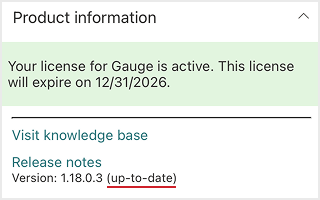
If the app is already up to date, this will be shown instead.
Checking all your apps at once
To check the update status of all your installed Accelerator 365 apps at once:
Note: The SharePoint Administrator role is required for this method.
- Go to the SharePoint Admin Center, and sign in with an account that has SharePoint Administrator permissions for your organization.
- Select More features on the left-hand panel.
- Under Apps, select Open to open the Manage Apps section.
- Switch to the classic experience of the app catalog.
- Select the Accelerator 365 app you want to check.
- Switch to the Files tab in the SharePoint ribbon.
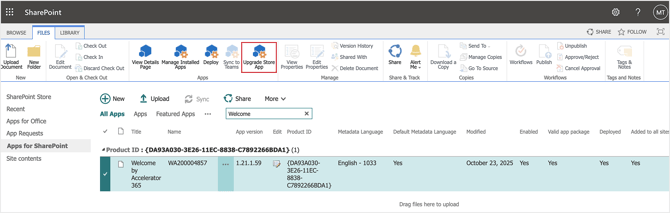
If an update is available, you’ll see the Upgrade Store App option highlighted.
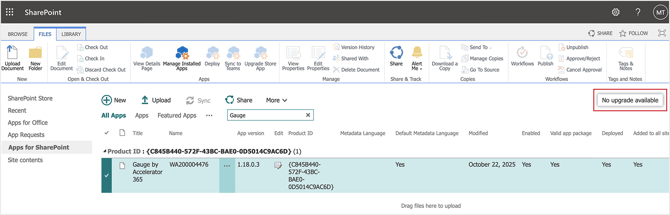
If there's no update available, you'll see a No upgrade available notification instead.
Ready to update?
Once you've confirmed an update is available, follow our Update an app guide to complete the process.