---
title: Getting started (My Contacts)
description: Learn how to configure and customize the My Contacts app for SharePoint to help users quickly find colleagues, teams, and key contacts across your organization.
---
[Skip to content](https://support.accelerator365.com/en/my-contacts-getting-started#main-content)
[.png?width=100&height=47&name=Accelerator%20365%20Logo%20(Colour%20+%20No%20Text).png)](https://support.accelerator365.com/?hsLang=en)
- [Home](https://support.accelerator365.com/en)
- [Getting started guides](https://support.accelerator365.com/en/getting-started)
- Product support
Show submenu for Product support
- [Apps](https://support.accelerator365.com/en/apps)
- [Solutions](https://support.accelerator365.com/en/solutions)
- [Look Book support](https://support.accelerator365.com/en/look-book)
- [Pricing support](https://support.accelerator365.com/en/pricing)
- [Technical support](https://support.accelerator365.com/en/technical)
- [Accelerator 365 website](https://accelerator365.com/)
Open main navigation
Close main navigation
- [Home](https://support.accelerator365.com/en)
- [Getting started guides](https://support.accelerator365.com/en/getting-started)
- Product support
Show submenu for Product support
- [Apps](https://support.accelerator365.com/en/apps)
- [Solutions](https://support.accelerator365.com/en/solutions)
- [Look Book support](https://support.accelerator365.com/en/look-book)
- [Pricing support](https://support.accelerator365.com/en/pricing)
- [Technical support](https://support.accelerator365.com/en/technical)
- [Accelerator 365 website](https://accelerator365.com/)
- [Contact us](https://accelerator365.com/pages/contact)
[Contact us](https://accelerator365.com/pages/contact)
Hello, how can we help you?
- There are no suggestions because the search field is empty.
1. [Accelerator 365 Knowledge Base](https://support.accelerator365.com/en?hsLang=en)
2. [Apps](https://support.accelerator365.com/en/apps?hsLang=en)
3. [My Contacts](https://support.accelerator365.com/en/apps?hsLang=en#my-contacts)
# Getting started (My Contacts)
## How to configure and use the My Contacts app by Accelerator 365
The My Contacts app helps users quickly find and connect with the people they work with most, from top contacts and team members to searching across the entire organization. It's perfect for an intranet homepage, providing quick access to key colleagues in one location.
### Jump to
- [Configuring the app for the first time](https://support.accelerator365.com/en/my-contacts-getting-started#first-time-configuration)
- [Choosing which views to display](https://support.accelerator365.com/en/my-contacts-getting-started#views)
- [Adjusting the layout and card size](https://support.accelerator365.com/en/my-contacts-getting-started#layout)
- [Configure cards](https://support.accelerator365.com/en/my-contacts-getting-started#configure-cards)
- [Configure actions](https://support.accelerator365.com/en/my-contacts-getting-started#configure-actions)
- [Refining search with filters](https://support.accelerator365.com/en/my-contacts-getting-started#search-filters)
- [Manage placeholders and messages](https://support.accelerator365.com/en/my-contacts-getting-started#placeholders)
- [Related articles](https://support.accelerator365.com/en/my-contacts-getting-started#related-articles)
---
### Configuring the app for the first time
To add the My Contacts app:
1. Select **Edit** on your SharePoint page.
2. Select **+ [Add](https://support.accelerator365.com/en/my-contacts-getting-started#layout)a new web part**, then choose the **My Contacts** app.
3. Once added, the My Contacts app will automatically display the current user's top contacts, and is ready for customization.
---
### Choosing which views to display
Views determine how contacts appear in the My Contacts app. Each view serves a different purpose.
**Steps to manage views:**
1. Enter **Edit mode** on the app.
2. In the **property pane**, enable or disable any of the following views:
- **Top** - shows your most relevant contacts based on Microsoft 365 communication and collaboration patterns. [Learn more](https://learn.microsoft.com/en-us/graph/people-insights-overview)
- **My team** - displays your manager and peers using the Entra ID hierarchy. [Learn more](https://learn.microsoft.com/en-us/entra/fundamentals/how-to-manage-user-profile-info)
- **Search** - lets users find people across the organization.
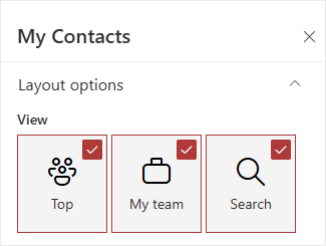
**Note:** at least one view must remain enabled.
---
### Adjusting the layout and card size
You can control how contact information is displayed and how many contacts appear, so users see just the right amount of detail at a glance.
**Steps to adjust layout:**
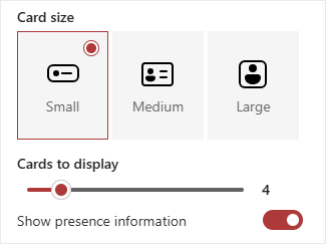
1. In the property pane, choose a **Card size**:
- **Small** - a compact view showing the profile image, display name, and one attribute. Great for a clean, simple display.
- **Medium** - includes all Small card information plus two additional attributes. Ideal for showing more context without taking up too much space.
- **Large** - shows all Medium card information plus two more attributes. Perfect when you want to highlight full profile details.
2. Set the number of **Cards to display** to control how many contacts users see at once. The default is 4 contacts, but can scale from 1 to 20.
3. Toggle **Show presence information** to display Microsoft 365 presence icons, so users can quickly see who’s online.
---
### Configure cards
You can decide exactly which profile attributes appear on all cards, giving users the details they need.
**Steps to customize cards:**
1. Open **Configure cards** in the property pane.
2. A panel will open, allowing you to select the card size to edit.
3. Choose a **subtitle** attribute for the card (applies to all card sizes).
4. For **Medium** cards, select up to 2 additional attributes; for **Large** cards, select up to 4.
5. **Reorder** attributes to highlight the most relevant information.
6. Click Apply to preview or **Save** once complete.
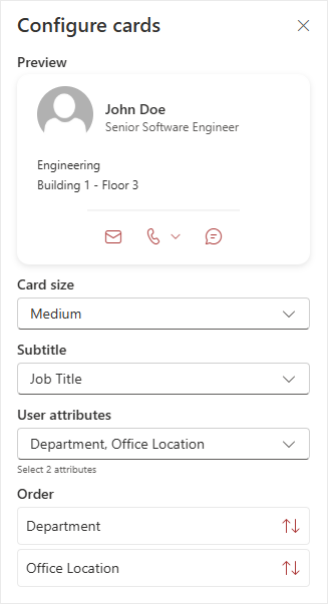
**Note:** attributes come from Microsoft Entra ID and update automatically.
---
### Configure actions
Actions let users interact with contacts directly from their cards, saving time.
**Steps to configure actions:**
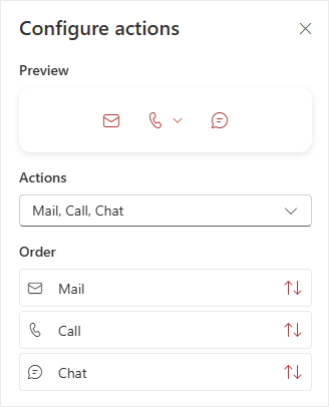
1. Open **Configure actions** in the property pane.
2. A panel will open, allowing you to enable or disable the following actions:
- **Mail** - send an email directly from the card
- **Call** - start a call via Teams, business phone, or mobile
- **Chat** - launch a one-to-one Teams chat
3. **Reorder** actions to match your organization’s priorities.
4. Click Apply to preview or **Save** once complete.
---
### Refining search with filters
Filters help users find the right people faster by narrowing the results presented in search. This setting only applies when the Search view is enabled.
**Steps to add search filters:**
1. Open **Search filters** in the property pane.
2. A larger panel will open, allowing you to control the search filters. Click **Add filter**.
3. Select if this is an **And/Or** condition, then select an attribute, an operator, and enter a value.
1. Optionally, an **Advanced editor** is available to refine or edit queries manually.
4. Click **Save** once complete.
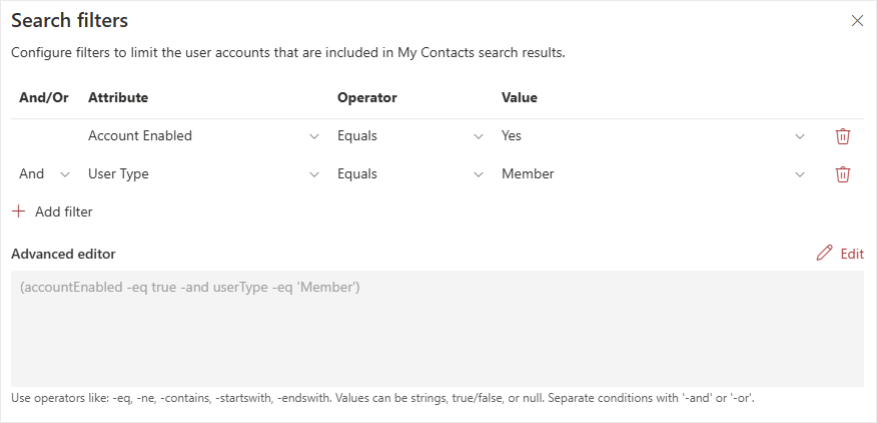
**Tip:** pre-filters are already applied to focus on users with enabled accounts and internal employees.
---
### Manage placeholders and messages
Apply custom placeholder messages to fine-tune the My Contacts experience.
**Steps to manage placeholders:**
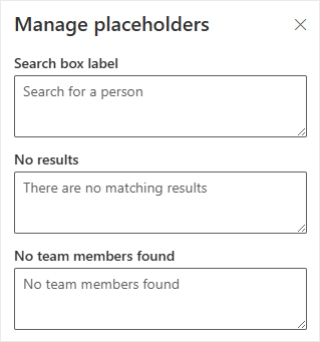
1. Open **Manage placeholders** in the property pane.
2. A panel will open, allowing you to edit text for:
- **Search box label** - the text shown inside the search field
- **No results** - displayed when no matches are found in Search or Top
- **No team members found** - shown when no team members are available in My team
3. Click **Save** once complete.
---
### Related articles
- [Frequently asked questions](https://support.accelerator365.com/en/my-contacts-frequently-asked-questions?hsLang=en)
- [Use cases & best practices](https://support.accelerator365.com/en/my-contacts-use-cases-best-practices?hsLang=en)
- [Release notes](https://support.accelerator365.com/en/my-contacts-release-notes?hsLang=en)
- [Technical details](https://support.accelerator365.com/en/my-contacts-technical-details?hsLang=en)
- [Getting started](https://support.accelerator365.com/en/getting-started?hsLang=en)
- [Apps](https://support.accelerator365.com/en/apps?hsLang=en#main-content)
- [Accordion](https://support.accelerator365.com/en/apps?hsLang=en#accordion)
- [Advent Calendar](https://support.accelerator365.com/en/apps?hsLang=en#advent-calendar)
- [Alerts](https://support.accelerator365.com/en/apps?hsLang=en#alerts)
- [Anniversaries](https://support.accelerator365.com/en/apps?hsLang=en#anniversaries)
- [Audience Subscription](https://support.accelerator365.com/en/apps?hsLang=en#audience-subscription)
- [Back to Top](https://support.accelerator365.com/en/apps?hsLang=en#back-to-top)
- [Before and After](https://support.accelerator365.com/en/apps?hsLang=en#before-and-after)
- [Carousel](https://support.accelerator365.com/en/apps?hsLang=en#carousel)
- [Countdown Calendar](https://support.accelerator365.com/en/apps?hsLang=en#countdown-calendar)
- [FAQ](https://support.accelerator365.com/en/apps?hsLang=en#faq)
- [Gauge](https://support.accelerator365.com/en/apps?hsLang=en#gauge)
- [Glossary](https://support.accelerator365.com/en/apps?hsLang=en#glossary)
- [Image Map](https://support.accelerator365.com/en/apps?hsLang=en#image-map)
- [Launchpad](https://support.accelerator365.com/en/apps?hsLang=en#launchpad)
- [My Calendar](https://support.accelerator365.com/en/apps?hsLang=en#my-calendar)
- [My Contacts](https://support.accelerator365.com/en/apps?hsLang=en#my-contacts)
- [My Emails](https://support.accelerator365.com/en/apps?hsLang=en#my-emails)
- [Noticeboard](https://support.accelerator365.com/en/apps?hsLang=en#noticeboard)
- [Page Authors](https://support.accelerator365.com/en/apps?hsLang=en#page-authors)
- [Page Breadcrumbs](https://support.accelerator365.com/en/apps?hsLang=en#page-breadcrumbs)
- [Page Feedback](https://support.accelerator365.com/en/apps?hsLang=en#page-feedback)
- [Page Tags](https://support.accelerator365.com/en/apps?hsLang=en#page-tags)
- [Page Tour](https://support.accelerator365.com/en/apps?hsLang=en#page-tour)
- [Pages Directory](https://support.accelerator365.com/en/apps?hsLang=en#pages-directory)
- [People Directory](https://support.accelerator365.com/en/apps?hsLang=en#people-directory)
- [Poll](https://support.accelerator365.com/en/apps?hsLang=en#poll)
- [Rate My Day](https://support.accelerator365.com/en/apps?hsLang=en#rate-my-day)
- [Section Search](https://support.accelerator365.com/en/apps?hsLang=en#section-search)
- [Site Analytics](https://support.accelerator365.com/en/apps?hsLang=en#site-analytics)
- [Spotlight](https://support.accelerator365.com/en/apps?hsLang=en#spotlight)
- [Stock Price](https://support.accelerator365.com/en/apps?hsLang=en#stock-price)
- [Subscribe Now](https://support.accelerator365.com/en/apps?hsLang=en#subscribe-now)
- [Table of Contents](https://support.accelerator365.com/en/apps?hsLang=en#table-of-contents)
- [Tabs](https://support.accelerator365.com/en/apps?hsLang=en#tabs)
- [User Profile](https://support.accelerator365.com/en/apps?hsLang=en#user-profile)
- [Welcome](https://support.accelerator365.com/en/apps?hsLang=en#welcome)
- [Solutions](https://support.accelerator365.com/en/solutions?hsLang=en#main-content)
- [Content Manager Dashboard](https://support.accelerator365.com/en/solutions?hsLang=en#content-manager-dashboard)
- [Translator for SharePoint](https://support.accelerator365.com/en/solutions?hsLang=en#translator-for-sharepoint)
- [Look Book](https://support.accelerator365.com/en/look-book?hsLang=en)
- [Pricing](https://support.accelerator365.com/en/pricing?hsLang=en)
- [Technical](https://support.accelerator365.com/en/technical?hsLang=en#main-content)
- [General](https://support.accelerator365.com/en/technical?hsLang=en#general)
- [Maintenance](https://support.accelerator365.com/en/technical?hsLang=en#maintenance)
- [Troubleshooting](https://support.accelerator365.com/en/technical?hsLang=en#troubleshooting)
- [About](https://accelerator365.com/pages/about-us)
- [Blogs](https://accelerator365.com/blogs/updates)
- [Reply](https://www.reply.com/en)
- [Partners](https://accelerator365.com/pages/find-a-partner)
- [Contact](https://accelerator365.com/pages/contact)
- [License Agreement](https://accelerator365.com/pages/license-agreement)
- [Privacy Policy](https://www.reply.com/en/privacy-policy)
- [Service Level Agreement](https://accelerator365.com/pages/service-level-agreement)
[.png?width=60&height=29&name=Accelerator%20365%20Logo%20(Colour%20+%20No%20Text).png "Accelerator 365 logo")](https://accelerator365.com/)
Accelerator 365 by Reply