.png?width=100&height=47&name=Accelerator%20365%20Logo%20(Colour%20+%20No%20Text).png)
The Rate My Day app helps content owners capture sentiment at scale, supporting wellbeing, HR, or internal engagement initiatives. This guide will take you through setting up the app to capture ratings.
Jump to
- Configuring the app for the first time
- Create a data source
- Configuring rating options in Rate mode
- Enabling written feedback in Rate mode
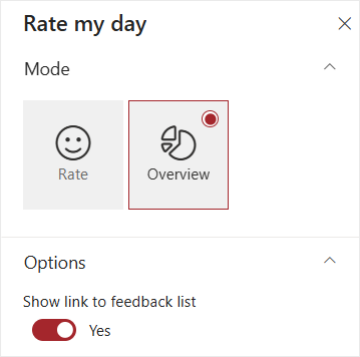
- Using Overview mode
- Related articles
Configuring the app for the first time
To add the Rate My Day app:
-
Select Edit on your SharePoint page.
-
Select + Add a new web part, then choose the Rate My Day app.
-
Once added, the Rate My Day app will display as a placeholder and is ready to be configured.
Create a data source
The Rate My Day app uses background SharePoint lists to store all ratings and feedback. You won’t need to interact with this list, but it is essential for the app to function.
-
In the property pane, select your site and then the Create data source button.
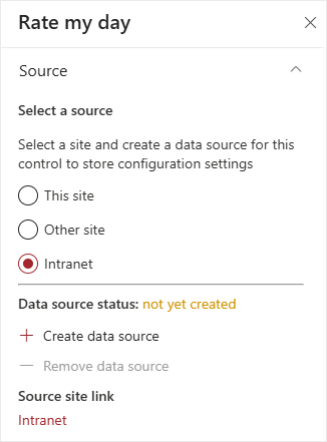
Note:
- Only users in the Site Owners group can create a data source.
- You can only create one data source per site.
Configuring rating options in Rate mode
Rate mode is the default experience and is designed for pages where users submit their daily rating, such as your intranet homepage or landing page.
This mode allows users to quickly rate their day directly within the web part.
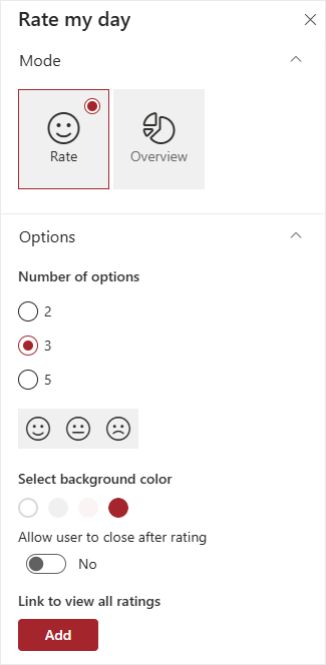
In Rate mode, you can customise how users interact with the app:
-
Number of options - Choose between 2, 3, or 5 smiley faces
-
Select background color - Select a background color for the web part using your SharePoint site theme colors. This is independent of the SharePoint section background.
-
Allow user to close after rating - When enabled, users can dismiss the web part after submitting a rating. By default, this is disabled.
-
Link to view all ratings - Optionally, add a link to another page - commonly an Overview page - so users can explore overall sentiment and trends.
Enabling written feedback in Rate mode
You can allow users to submit written feedback alongside their rating.
When enabled, after rating, users will see a link prompting them to leave feedback. The feedback is collected through a simple form and stored in a background SharePoint list.
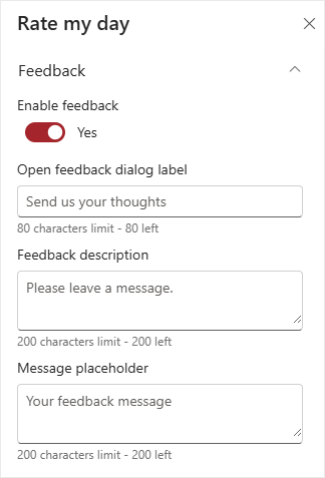
In the web part property pane, you can customise:
-
Open feedback dialog label - the link text users see after rating to leave feedback
-
Feedback description - explanatory text shown in the feedback form
-
Message placeholder - guidance text inside the feedback input
This helps you gather richer insights beyond numeric ratings.
Using Overview mode
Overview mode provides visibility into how users are feeling over time, making it ideal for engagement reporting.
The web part displays day-by-day rating activity, the total number of ratings submitted, and a clear breakdown of how sentiment is distributed across all responses.
You can view ratings from the last 7, 30, or 90 days and switch between pie charts, line graphs, or column charts to easily visualise sentiment trends.
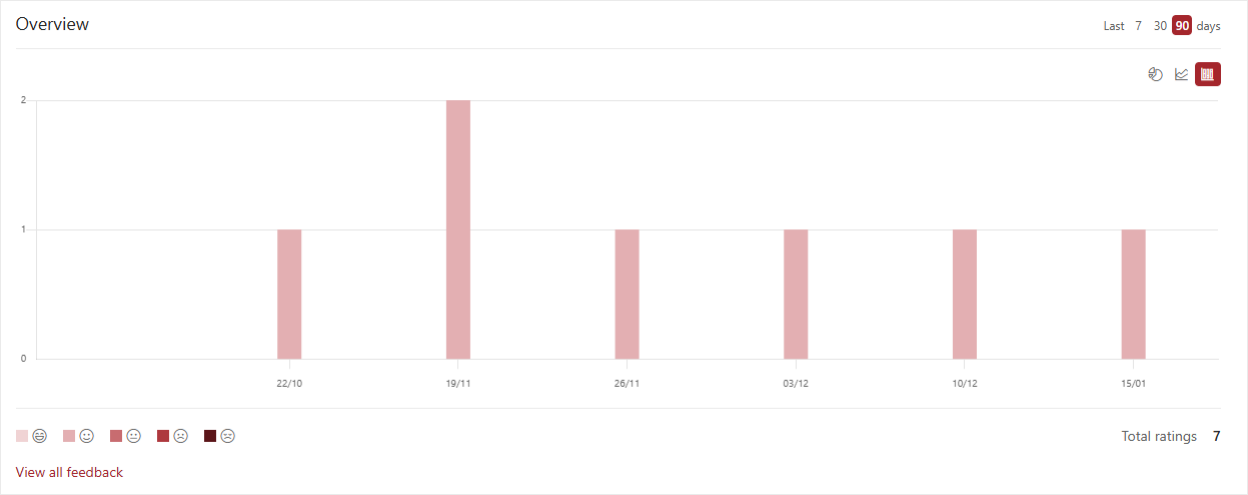
From the web part property pane, you can also choose to display a link to the feedback list, allowing users to review their written feedback stored in the background SharePoint list.