.png?width=100&height=47&name=Accelerator%20365%20Logo%20(Colour%20+%20No%20Text).png)
The Stock Price app lets you display up-to-date stock market information directly on your SharePoint pages. Choose a compact snapshot or a detailed, interactive view to keep employees informed at a glance.
Jump to
- Configuring the app for the first time
- Choose a layout
- Use the Stock Price card in Viva Connections
- Related articles
Configuring the app for the first time
To add the Stock Price app:
-
Select Edit on your SharePoint page.
-
Select + Add a new web part, then choose the Stock Price app.
-
Once added, the Stock Price app will display as a placeholder and is ready for you to select a stock.
-
Select Change stock, in the web part property pane and enter a company name or stock code.
-
Choose the correct stock from the results and select Apply.
Choose a layout
Once the stock is selected, choose how the information is displayed on the page with a choice of two layouts:
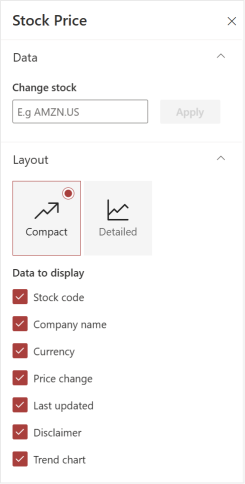
- Compact layout - provides a concise snapshot of stock performance.
- You can toggle elements on or off (all enabled by default): Stock code, Company name, Currency, Price change, Last updated, Disclaimer, and Trend chart.
- The trend chart shows the opening and closing price for the day.
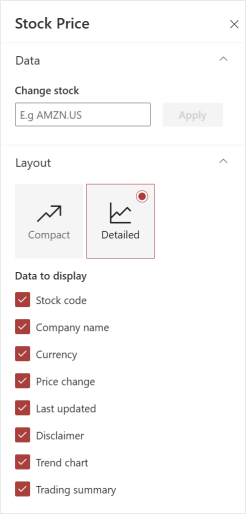
- Detailed layout - includes the same information as the Compact layout, plus an interactive stock history chart.
- You can toggle elements on or off (all enabled by default): Stock code, Company name, Currency, Price change, Last updated, Disclaimer, Trend chart, and Trading summary.
- Users can view different time ranges on the trend chart, including 1 day, 5 days, 1 month, 6 months, Year to date (from Jan 1), 1 year, 5 years, or maximum available data.
-
Users can hover over any point on the trend chart to view the stock value for a specific date.
Use the Stock Price card in Viva Connections
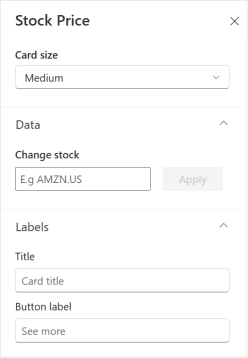
The Stock Price app also includes a Viva Connections Dashboard card for surfacing stock information in a quick, glanceable format. The card displays the same information as the Compact layout, with the trend chart visible in the quick view.
-
Edit your Viva Connections Dashboard.
-
Add the Stock Price card.
-
Choose a card size: Medium or Large
-
Select the stock using the same stock search experience.
-
Customize card labels, including:
-
Card title
-
Button label (for example, “See more”)
-