.png?width=100&height=47&name=Accelerator%20365%20Logo%20(Colour%20+%20No%20Text).png)
Microsoft’s Content Security Policy (CSP) strengthens security across SharePoint Online by controlling how scripts are loaded and run on pages, helping to protect SharePoint environments better (further details available here).
Accelerator 365 apps are fully aligned with this approach. This guide shows SharePoint Administrators how to add trusted script sources where needed, keeping your environment secure and your apps running smoothly.
Note: The SharePoint Administrator role will be required when adding a trusted script source.
-
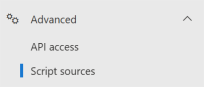
Navigate to the SharePoint Admin Center. In the left-hand menu, expand Advanced, select Script sources.
-
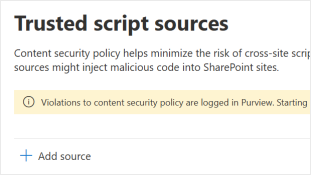
In the Trusted script sources area, select the Add source button.
-
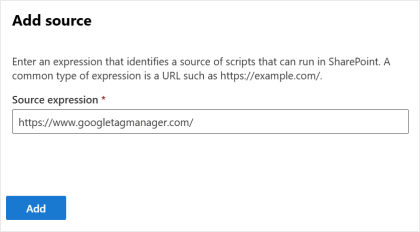
For the URL you want to set as trusted, add it in the Source expression field.
In the case of the Site Analytics app, we would add:https://www.googletagmanager.com/
-
Select Add to apply the new trusted script source.