.png?width=100&height=47&name=Accelerator%20365%20Logo%20(Colour%20+%20No%20Text).png)
Our products use SharePoint tenant properties as a central location for global settings, allowing every site and product to reference the same information, such as a license key.
To apply a tenant property, a SharePoint Administrator needs to temporarily enable custom scripts on your App Catalog site. This brief step ensures the property is configured correctly and securely.
Important: This is a temporary change. Enabling custom scripts for the App Catalog site is only required while the tenant property is applied. Settings revert automatically after 24 hours, or you can turn them off manually once complete.
The video below is primarily a guide to licensing your Accelerator 365 products, but it also covers how to temporarily enable custom scripts. If you prefer to follow along visually, it's a good place to start.
Note: The SharePoint Administrator role will be required when enabling custom scripts on your App Catalog site.
-
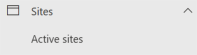
Navigate to the SharePoint Admin Center. In the left-hand menu, expand Sites and select Active sites.
-
Use the search box to locate your App Catalog site (e.g. /sites/appcatalog).
-
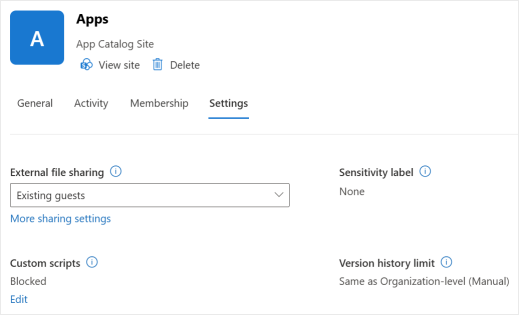
Select the App Catalog site from the list. A panel will open - choose Settings.
-
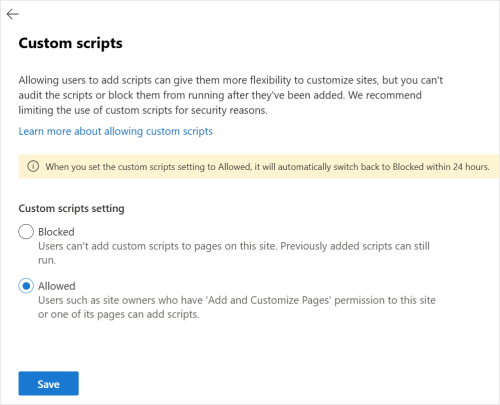
Under Custom scripts, click Edit, then select Allowed.
-
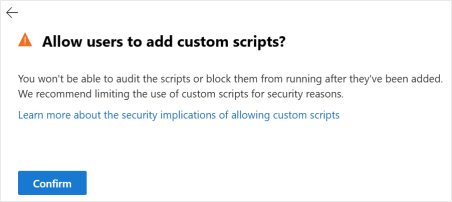
Click Save, then Confirm to apply the change.
With custom scripts enabled, continue with the remaining steps in the previously linked article to set the tenant property (for example, applying your license key).