.png?width=100&height=47&name=Accelerator%20365%20Logo%20(Colour%20+%20No%20Text).png)
The Accordion app allows you to display content in collapsible sections, helping users quickly scan information and expand only what’s relevant. It’s perfect for FAQs, policies, guidance content, or any long blocks of text on SharePoint pages.
Jump to
- Configuring the app for the first time
- Adding a new section
- Customizing the appearance
- Search and content visibility
- Organizing your sections
- Related articles
Configuring the app for the first time
To add the Accordion app:
-
Select Edit on your SharePoint page.
-
Select + Add a new web part, then choose the Accordion app.
-
Once added, the Accordion app will display as a placeholder and is ready for you to add content.
Adding a new section
Accordion sections are the individual collapsible areas within the app.
To add a section:
-
Enter Edit mode on the app
-
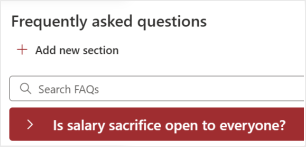
Click + Add new section at the top of the app
-
Enter a title in the section header
-
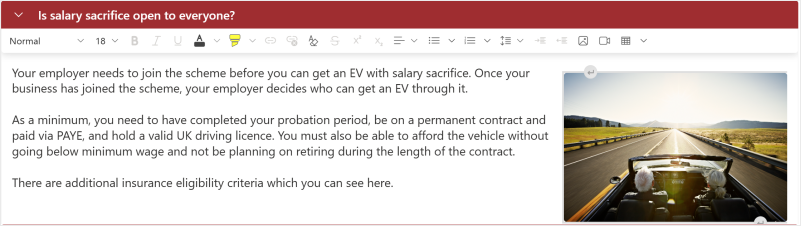
Add your content directly inside the Accordion section. Each section supports rich content, including:
- Formatted text
- Hyperlinks
- Images and Videos
- Tables
Customizing the appearance
The Accordion app can be styled to match your page and site branding. You have two main options:
-
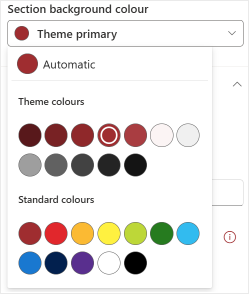
Section title color – choose from SharePoint theme colors or the standard colors supplied by SharePoint
-
Section background color – choose from the same set of SharePoint theme or standard colors
Search and content visibility
The Accordion app includes features to help users find and view content easily:
-
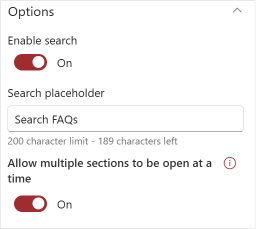
Search – enable to allow users to find content within sections, and customise the placeholder text that appears in the search box
- Allow multiple sections to be open at the same time – toggle this option to control whether users can expand more than one section simultaneously
Organizing your sections
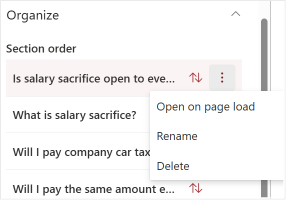
From the property pane, you can manage all your Accordion sections:
-
Reorder sections using the drag handles
-
Rename a section either in the property pane or by double-clicking the section title directly on the web part
-
Open a section on page load – select a default section to display in an expanded state when the page loads
-
Delete a section if it’s no longer needed