.png?width=100&height=47&name=Accelerator%20365%20Logo%20(Colour%20+%20No%20Text).png)
Image Map lets you turn a static image into an interactive experience by adding clickable areas, tooltips, and links, making it ideal for explaining diagrams, highlighting key areas, guiding users through a process, or creating visual navigation with reusable, content-rich hotspots.
Jump to
- Configuring the app for the first time
- Add and manage hotspot shapes
- Add tooltip content
- Customize the Image Map
- Export and import hotspot areas
- Related articles
Configuring the app for the first time
To add the Image Map app:
-
Select Edit on your SharePoint page.
-
Select + Add a new web part, then choose the Image Map app.
-
When the web part is added, the image picker appears automatically. You can select an image by:
-
Uploading your own image
-
Choosing an image from the current site
-
Using Organization, stock or web images
-
Once selected, the image becomes the base for adding hotspot areas
Add and manage hotspot shapes
Hotspots define the interactive areas on your image.
-
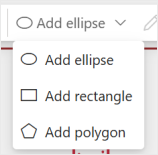
In the Image Map toolbar, select the Add ellipse dropdown.
-
Choose the shape type you want to use:
-
Ellipse
-
Rectangle
-
Polygon
-
- Draw the selected shape directly onto the image in the area you want to highlight.
- If needed, you can repeat this process to add additional hotspot areas anywhere on the image. You can also resize and move the shape using the drag handles.
Add tooltip content
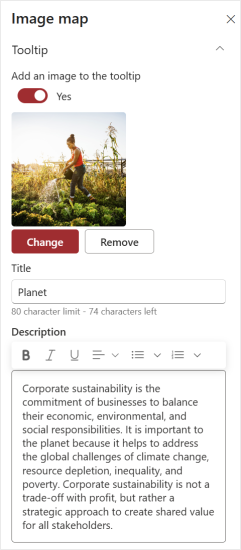
Once a hotspot area has been drawn, its settings appear in the property pane. Here, you can configure the tooltip content for that hotspot:
-
Add an optional link to use the hotspot as navigation or a call to action. You can also choose whether the link opens in a new tab
-
Add an optional image
-
Add a title
-
Add a description, including basic rich text and bulleted and numbered lists.
-
Choose where the tooltip appears relative to the hotspot.
Customize the Image Map
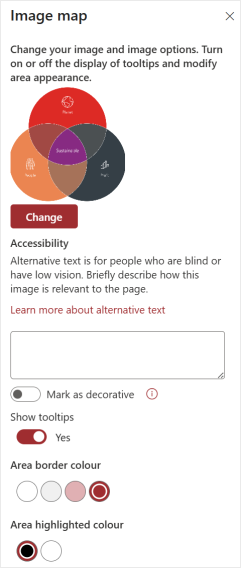
When editing the Image Map web part, you can also configure global settings, such as:
-
Accessibility alt text for the image
-
The option to show or hide tooltips
-
Border color for hotspot areas (based on the SharePoint site theme)
-
Highlight color for hotspot hover states (black or white)
-
Hint settings:
- Show or hide the hint
- Customize the label
- Change the hint position so it doesn’t interfere with the image or hotspots
Export and import hotspot areas
Image Map lets you export and import hotspot areas, making it easy to recreate the same Image Map on other pages.
To reuse hotspots:
-
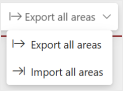
Edit the Image Map web part on your original page and select Export all areas on the toolbar, then click Copy.
-
Add Image Map to the new page and select the same image.
-
Select Import all areas on the toolbar, paste the copied content, and click Import.