---
title: Getting started (Page Tour)
description: Learn how to configure and use the Page Tour app by Accelerator 365 to create interactive, step-by-step tours on your intranet.
---
[Skip to content](https://support.accelerator365.com/en/page-tour-getting-started#main-content)
[.png?width=100&height=47&name=Accelerator%20365%20Logo%20(Colour%20+%20No%20Text).png)](https://support.accelerator365.com/?hsLang=en)
- [Home](https://support.accelerator365.com/en)
- [Getting started guides](https://support.accelerator365.com/en/getting-started)
- Product support
Show submenu for Product support
- [Apps](https://support.accelerator365.com/en/apps)
- [Solutions](https://support.accelerator365.com/en/solutions)
- [Look Book support](https://support.accelerator365.com/en/look-book)
- [Pricing support](https://support.accelerator365.com/en/pricing)
- [Technical support](https://support.accelerator365.com/en/technical)
- [Accelerator 365 website](https://accelerator365.com/)
Open main navigation
Close main navigation
- [Home](https://support.accelerator365.com/en)
- [Getting started guides](https://support.accelerator365.com/en/getting-started)
- Product support
Show submenu for Product support
- [Apps](https://support.accelerator365.com/en/apps)
- [Solutions](https://support.accelerator365.com/en/solutions)
- [Look Book support](https://support.accelerator365.com/en/look-book)
- [Pricing support](https://support.accelerator365.com/en/pricing)
- [Technical support](https://support.accelerator365.com/en/technical)
- [Accelerator 365 website](https://accelerator365.com/)
- [Contact us](https://accelerator365.com/pages/contact)
[Contact us](https://accelerator365.com/pages/contact)
Hello, how can we help you?
- There are no suggestions because the search field is empty.
1. [Accelerator 365 Knowledge Base](https://support.accelerator365.com/en?hsLang=en)
2. [Apps](https://support.accelerator365.com/en/apps?hsLang=en)
3. [Page Tour](https://support.accelerator365.com/en/apps?hsLang=en#page-tour)
# Getting started (Page Tour)
## How to configure and use the Page Tour app by Accelerator 365
The Page Tour app helps you create an interactive, step-by-step tour on your SharePoint pages, helping walkthrough important content and features of your intranet. It gives users a self-service guide, making your intranet more intuitive and engaging.
### Jump to
- [Configuring the app for the first time](https://support.accelerator365.com/en/page-tour-getting-started#first-time-configuration)
- [Create a data source](https://support.accelerator365.com/en/page-tour-getting-started#create-a-data-source)
- [Adding steps to your tour](https://support.accelerator365.com/en/page-tour-getting-started#add-a-step)
- [Customizing the layout](https://support.accelerator365.com/en/page-tour-getting-started#customizing-the-layout)
- [Managing the tour behavior](https://support.accelerator365.com/en/page-tour-getting-started#tour-behavior)
- [Managing steps](https://support.accelerator365.com/en/page-tour-getting-started#managing-steps)
- [Related articles](https://support.accelerator365.com/en/page-tour-getting-started#related-articles)
---
### Configuring the app for the first time
To add the Page Tour app:
1. Select **Edit** on your SharePoint page.
2. Select **+ Add a new web part**, then choose the **Page Tour** app.
3. Once added, the Page Tour app will display as a placeholder and is ready for you to add your first step.
---
### Create a data source
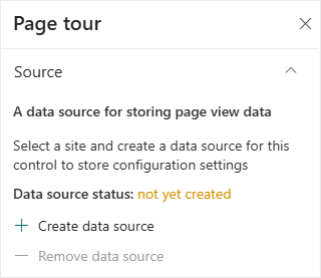
The Page Tour app uses a **background SharePoint list** to log the users who have dismissed the tour after completing it. Whilst you won’t need to interact with this list, the lists are essential for the app to function, to ensure the tour isn't shown again to users who have dismissed it.
1. In the property pane, select the **Create data source** button, which will create a data source on your site.
**Note:**
- Only users in the Site Owners group can create a data source.
- You can only create **one data source per site**.
---
### Adding steps to your tour
1. In the web part property pane, select **Customize steps**.
2. A larger panel appears for managing your steps.
3. Select **Add step**. You can choose from four types of steps:
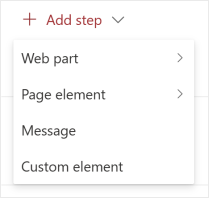
1. **Web part:** Targets a specific web part on the page.
2. **Page element:** Highlights a SharePoint UI element, such as the navigation bar or search box.
3. **Message:** A standalone message not linked to any page element, ideal for opening or closing messages.
4. **Custom element** – Allows you to target any page element using a CSS selector.
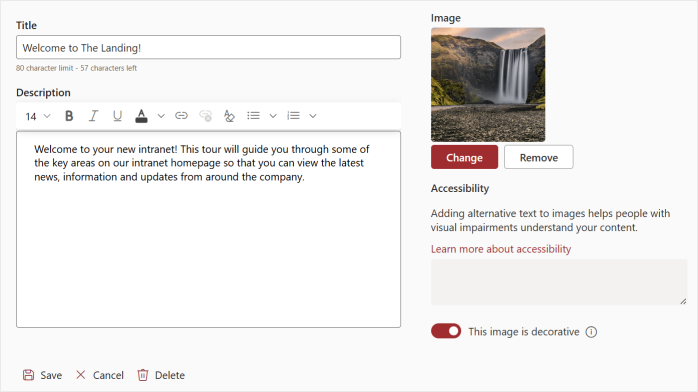
4. All step types allow you to add content consistently:
1. **Title**– Add a clear title for each step.
2. **Description**– Include formatted text with options for font size, color, hyperlinks, bulleted or numbered lists.
3. **Images**– Add images to highlight content; include alt text for accessibility.
5. Select **Save** once complete.
---
### Customizing the layout
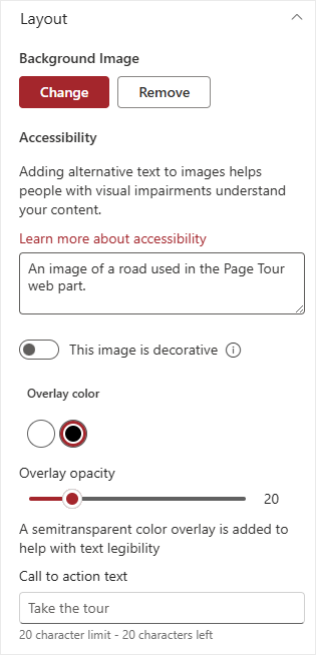
In the property pane, the **Layout** section lets you adjust the look and feel of your Page Tour:
1. **Background:**
- By default, a solid color is applied based on your SharePoint site theme.
- Optionally, upload a background image.
- If you upload an image, you can set **alt text** for accessibility.
- Adjust **overlay color** and **overlay opacity** using the slider to ensure text is legible.
2. **Labels:**
- **Add a description** on the Page Tour web part. This is often used to greet users to the intranet.
- Edit the **Call to action text** (default is *Take the tour*) directly in the property pane.
---
### Managing the tour behavior
In the property pane, you can also control when the Page Tour behavior.
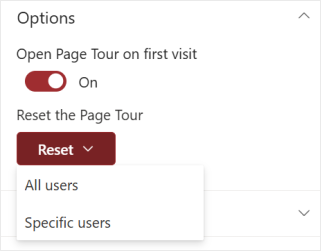
- **Open Page Tour on first visit:** Toggle this option on or off to control whether new visitors to your site see the tour automatically.
- **Reset the Page Tour:** The reset menu includes two options:
1. **All users** – Makes the tour visible again for everyone on the site.
2. **Specific users** – Opens a panel where you can enter up to 50 users whose tour progress should be reset.
---
### Managing steps
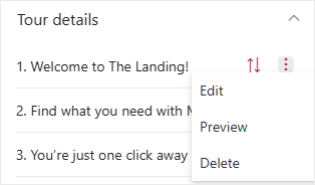
You can easily manage your Page Tour steps from the property pane. Next to any step, you can:
- **Rearrange steps** using the draghandles to change their order.
- **Edit steps** to update titles, descriptions, images, or settings.
- **Delete steps** you no longer need.
- **Preview individual steps** or the **entire tour** before saving your page.
---
### Related articles
- [Frequently asked questions](https://support.accelerator365.com/en/page-tour-frequently-asked-questions?hsLang=en)
- [Release notes](https://support.accelerator365.com/en/page-tour-release-notes?hsLang=en)
- [Technical details](https://support.accelerator365.com/en/page-tour-technical-details?hsLang=en)
- [Getting started](https://support.accelerator365.com/en/getting-started?hsLang=en)
- [Apps](https://support.accelerator365.com/en/apps?hsLang=en#main-content)
- [Accordion](https://support.accelerator365.com/en/apps?hsLang=en#accordion)
- [Advent Calendar](https://support.accelerator365.com/en/apps?hsLang=en#advent-calendar)
- [Alerts](https://support.accelerator365.com/en/apps?hsLang=en#alerts)
- [Anniversaries](https://support.accelerator365.com/en/apps?hsLang=en#anniversaries)
- [Audience Subscription](https://support.accelerator365.com/en/apps?hsLang=en#audience-subscription)
- [Back to Top](https://support.accelerator365.com/en/apps?hsLang=en#back-to-top)
- [Before and After](https://support.accelerator365.com/en/apps?hsLang=en#before-and-after)
- [Carousel](https://support.accelerator365.com/en/apps?hsLang=en#carousel)
- [Countdown Calendar](https://support.accelerator365.com/en/apps?hsLang=en#countdown-calendar)
- [FAQ](https://support.accelerator365.com/en/apps?hsLang=en#faq)
- [Gauge](https://support.accelerator365.com/en/apps?hsLang=en#gauge)
- [Glossary](https://support.accelerator365.com/en/apps?hsLang=en#glossary)
- [Image Map](https://support.accelerator365.com/en/apps?hsLang=en#image-map)
- [Launchpad](https://support.accelerator365.com/en/apps?hsLang=en#launchpad)
- [My Calendar](https://support.accelerator365.com/en/apps?hsLang=en#my-calendar)
- [My Contacts](https://support.accelerator365.com/en/apps?hsLang=en#my-contacts)
- [My Emails](https://support.accelerator365.com/en/apps?hsLang=en#my-emails)
- [Noticeboard](https://support.accelerator365.com/en/apps?hsLang=en#noticeboard)
- [Page Authors](https://support.accelerator365.com/en/apps?hsLang=en#page-authors)
- [Page Breadcrumbs](https://support.accelerator365.com/en/apps?hsLang=en#page-breadcrumbs)
- [Page Feedback](https://support.accelerator365.com/en/apps?hsLang=en#page-feedback)
- [Page Tags](https://support.accelerator365.com/en/apps?hsLang=en#page-tags)
- [Page Tour](https://support.accelerator365.com/en/apps?hsLang=en#page-tour)
- [Pages Directory](https://support.accelerator365.com/en/apps?hsLang=en#pages-directory)
- [People Directory](https://support.accelerator365.com/en/apps?hsLang=en#people-directory)
- [Poll](https://support.accelerator365.com/en/apps?hsLang=en#poll)
- [Rate My Day](https://support.accelerator365.com/en/apps?hsLang=en#rate-my-day)
- [Section Search](https://support.accelerator365.com/en/apps?hsLang=en#section-search)
- [Site Analytics](https://support.accelerator365.com/en/apps?hsLang=en#site-analytics)
- [Spotlight](https://support.accelerator365.com/en/apps?hsLang=en#spotlight)
- [Stock Price](https://support.accelerator365.com/en/apps?hsLang=en#stock-price)
- [Subscribe Now](https://support.accelerator365.com/en/apps?hsLang=en#subscribe-now)
- [Table of Contents](https://support.accelerator365.com/en/apps?hsLang=en#table-of-contents)
- [Tabs](https://support.accelerator365.com/en/apps?hsLang=en#tabs)
- [User Profile](https://support.accelerator365.com/en/apps?hsLang=en#user-profile)
- [Welcome](https://support.accelerator365.com/en/apps?hsLang=en#welcome)
- [Solutions](https://support.accelerator365.com/en/solutions?hsLang=en#main-content)
- [Content Manager Dashboard](https://support.accelerator365.com/en/solutions?hsLang=en#content-manager-dashboard)
- [Translator for SharePoint](https://support.accelerator365.com/en/solutions?hsLang=en#translator-for-sharepoint)
- [Look Book](https://support.accelerator365.com/en/look-book?hsLang=en)
- [Pricing](https://support.accelerator365.com/en/pricing?hsLang=en)
- [Technical](https://support.accelerator365.com/en/technical?hsLang=en#main-content)
- [General](https://support.accelerator365.com/en/technical?hsLang=en#general)
- [Maintenance](https://support.accelerator365.com/en/technical?hsLang=en#maintenance)
- [Troubleshooting](https://support.accelerator365.com/en/technical?hsLang=en#troubleshooting)
- [About](https://accelerator365.com/pages/about-us)
- [Blogs](https://accelerator365.com/blogs/updates)
- [Reply](https://www.reply.com/en)
- [Partners](https://accelerator365.com/pages/find-a-partner)
- [Contact](https://accelerator365.com/pages/contact)
- [License Agreement](https://accelerator365.com/pages/license-agreement)
- [Privacy Policy](https://www.reply.com/en/privacy-policy)
- [Service Level Agreement](https://accelerator365.com/pages/service-level-agreement)
[.png?width=60&height=29&name=Accelerator%20365%20Logo%20(Colour%20+%20No%20Text).png "Accelerator 365 logo")](https://accelerator365.com/)
Accelerator 365 by Reply