.png?width=100&height=47&name=Accelerator%20365%20Logo%20(Colour%20+%20No%20Text).png)
The People Directory app lets you display colleagues in a way that works best for your organization. Customize card and list views, actions, and placeholders to create a clean, intuitive directory that helps your team find and connect with colleagues quickly.
Jump to
- Configuring the layout controls
- Configure cards and columns
- Configure actions
- Manage placeholders
- Related articles
Configuring the layout controls
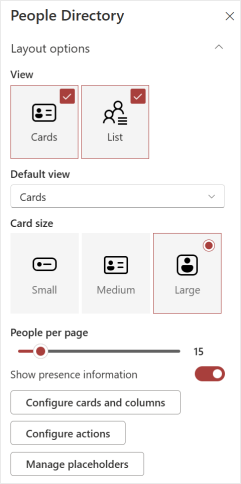
You can customize how the People Directory is displayed, from choosing card or list views to controlling pagination and presence, so users can browse profiles in a way that feels natural.
-
Enter edit mode on the app.
-
In the property pane, go to the Layout section.
-
Use the view selector to choose between Card, List, or both.
-
If both views are enabled, select the default view from the drop-down menu.
-
If the Card view is enabled, select a card size: Small, Medium, or Large.
-
Small - a compact view showing the profile image, display name, and one attribute. Great for a clean, simple display.
-
Medium - includes all Small card information plus two additional attributes. Ideal for showing more context without taking up too much space.
- Large - shows all Medium card information plus two more attributes. Perfect when you want to highlight full profile details.
-
- Set the number of People per page to control how many contacts users see at once. The default is 15 people, but can scale from 1 to 100.
- Toggle Show presence information to display Microsoft 365 presence icons, so users can quickly see who’s online.
Configure cards and columns
You can decide exactly which profile attributes appear on all cards or columns, giving users the details they need.
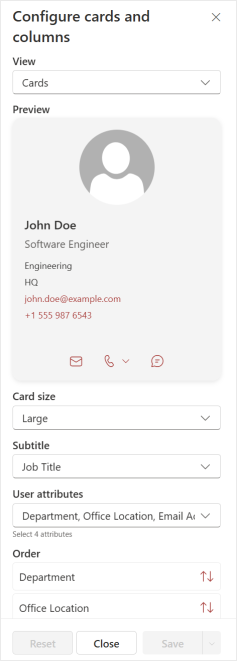
- In the property pane, select the Configure cards and columns button. A panel will open allowing you to customize the card and columns.
Steps to customize cards:
-
First, select a card size (Small, Medium, or Large) to edit.
-
Choose a subtitle attribute for the card (applies to all card sizes).
-
For Medium cards, select up to 2 additional attributes; for Large cards, select up to 4.
-
Reorder attributes to highlight the most relevant information.
- Click Apply to preview or Save once complete.
Steps to customize columns:
-
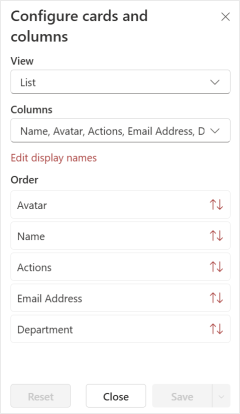
In the same panel, change the view to List.
-
Choose which attributes appear in the columns. You can edit the display names for attributes to business-friendly labels.
-
Reorder attributes to highlight the most relevant information.
-
Click Apply to preview or Save once complete.
Configure actions
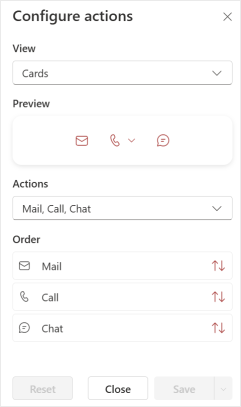
Actions let users interact with contacts directly from their cards, saving time.
Steps to configure actions:
-
Open Configure actions in the property pane.
-
A panel will open. Here you can select the view to edit - either Cards or List.
-
Next, you will have the option to enable or disable the following actions:
-
Mail - send an email directly from the card
-
Call - start a call via Teams, business phone, or mobile
-
Chat - launch a one-to-one Teams chat
-
-
Reorder actions to match your organization’s priorities.
- Click Apply to preview or Save once complete.
Manage placeholders
Apply custom placeholder messages to fine-tune the People Directory experience.
Steps to manage placeholders:
-
Open Manage placeholders in the property pane.
-
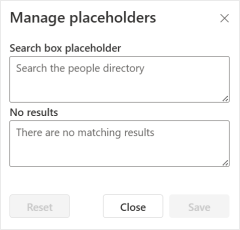
A panel will open, allowing you to edit text for:
-
Search box placeholder - the text shown inside the search field
-
No results - displayed when a search or filter returns no results.
-
- Click Save once complete.