.png?width=100&height=47&name=Accelerator%20365%20Logo%20(Colour%20+%20No%20Text).png)
Search and filter options allow users to explore the People Directory directly from the web part. You can control which tools are available and how they are presented to create a simple, intuitive people-finding experience.
Jump to
Search and filter controls
These settings let you define how users search and filter the directory, ensuring they can quickly access the profiles they need.
-
Enter edit mode on the app.
-
In the property pane, go to the Layout section.
-
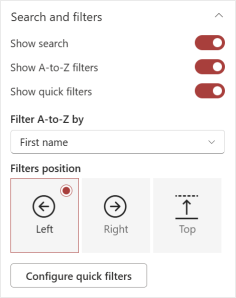
Configure the available options using the following toggles:
-
-
Show search to allow users to search for colleagues.
-
Show A-to-Z filters to enable alphabetical filtering.
-
Show quick filters to display attribute-based filters.
-
Depending on which options are enabled, additional settings will appear.
A-to-Z filter settings
-
When A–Z filters are enabled, use Filter A-to-Z by to choose whether filtering is based on First name or Last name.
Filters postion
-
When the A-to-Z and/or quick filters are enabled, you can control where filters appear on the web part.
-
Filters can be positioned on the left, right, or top of the directory. By default, filters are positioned on the left.
Configure quick filters
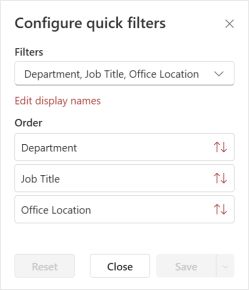
Quick filters allow users to narrow results using key profile attributes, helping them find relevant colleagues faster.
- In the property pane, select the Configure quick filters button. A panel will open allowing you to customize the card and columns. A panel will open where you can customize the quick filters available to users.
- Choose which attributes appear in the quick filters. You can edit the display names for attributes to business-friendly labels.
- Reorder attributes to highlight the most relevant filters.
- Click Apply to preview and Save once complete.