.png?width=100&height=47&name=Accelerator%20365%20Logo%20(Colour%20+%20No%20Text).png)
Section Search lets you quickly find text in SharePoint Text web parts, highlight all matches, and see matched counts. It works across collapsible sections - expanded or closed - so users can instantly locate content.
Jump to
How it works
- Section Search only finds text in SharePoint Text web parts. Other web parts are not included.
- If multiple Section Search apps exist on a page, each searches up to the next Section Search app, keeping results scoped and relevant.
- Matches are highlighted, and a count of results is displayed.
Configuring the app for the first time
To add the Section Search app:
-
Select Edit on your SharePoint page.
-
Select + Add a new web part, then choose the Section Search app.
-
Once added, the Section Search app will display and is ready for you to configure.
Customize Section Search
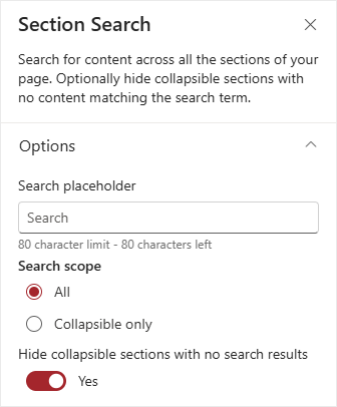
Once the app is added, you can adjust the settings to control how it searches and displays results:
-
Search placeholder - change the text shown in the search box.
-
Search scope - choose whether to search all sections or only collapsible sections.
-
Hide collapsible sections with no search results - enabled by default. Collapsible sections with no matches are automatically hidden.