.png?width=100&height=47&name=Accelerator%20365%20Logo%20(Colour%20+%20No%20Text).png)
Microsoft’s Content Security Policy (CSP) strengthens security across SharePoint Online by controlling how scripts are loaded and run on pages, helping to protect SharePoint environments better (further details available here).
For the Site Analytics app, this guide shows SharePoint Administrators how to add the Google Tag Manager URL as a trusted script source, ensuring the app runs smoothly while following Microsoft’s security best practices.
Note: The SharePoint Administrator role will be required when adding a trusted script source.
-
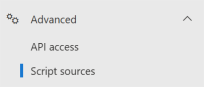
Navigate to the SharePoint Admin Center. In the left-hand menu, expand Advanced, select Script sources.
-
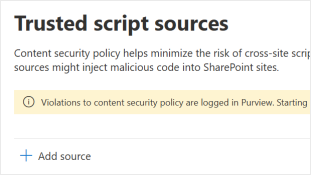
In the Trusted script sources area, select the Add source button.
-
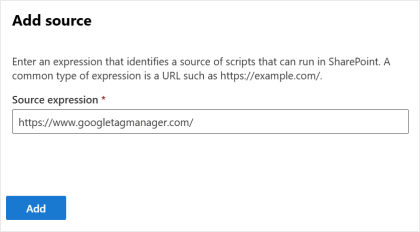
In the Source expression field, add the following Google Tag Manager URL:
https://www.googletagmanager.com/
-
Select Add to apply the new trusted script source.
What to expect
How do I know Site Analytics is tracking?
The easiest way to check is in Google Analytics: go to Reports > Realtime overview, then check if there is any activity appearing in the last 30 minutes.
Note: It can take a few minutes for data to start appearing after completing this setup. Clearing your browser cache before checking the Realtime report can help confirm this sooner.