---
title: Getting started (Spotlight)
description: Learn how to add, customize, and manage dismissible announcements with the Spotlight app for SharePoint, designed for high-impact messages on your intranet.
---
[Skip to content](https://support.accelerator365.com/en/spotlight-getting-started#main-content)
[.png?width=100&height=47&name=Accelerator%20365%20Logo%20(Colour%20+%20No%20Text).png)](https://support.accelerator365.com/?hsLang=en)
- [Home](https://support.accelerator365.com/en)
- [Getting started guides](https://support.accelerator365.com/en/getting-started)
- Product support
Show submenu for Product support
- [Apps](https://support.accelerator365.com/en/apps)
- [Solutions](https://support.accelerator365.com/en/solutions)
- [Look Book support](https://support.accelerator365.com/en/look-book)
- [Pricing support](https://support.accelerator365.com/en/pricing)
- [Technical support](https://support.accelerator365.com/en/technical)
- [Accelerator 365 website](https://accelerator365.com/)
Open main navigation
Close main navigation
- [Home](https://support.accelerator365.com/en)
- [Getting started guides](https://support.accelerator365.com/en/getting-started)
- Product support
Show submenu for Product support
- [Apps](https://support.accelerator365.com/en/apps)
- [Solutions](https://support.accelerator365.com/en/solutions)
- [Look Book support](https://support.accelerator365.com/en/look-book)
- [Pricing support](https://support.accelerator365.com/en/pricing)
- [Technical support](https://support.accelerator365.com/en/technical)
- [Accelerator 365 website](https://accelerator365.com/)
- [Contact us](https://accelerator365.com/pages/contact)
[Contact us](https://accelerator365.com/pages/contact)
Hello, how can we help you?
- There are no suggestions because the search field is empty.
1. [Accelerator 365 Knowledge Base](https://support.accelerator365.com/en?hsLang=en)
2. [Apps](https://support.accelerator365.com/en/apps?hsLang=en)
3. [Spotlight](https://support.accelerator365.com/en/apps?hsLang=en#spotlight)
# Getting started (Spotlight)
## How to configure and use the Spotlight app by Accelerator 365
The Spotlight app is designed for high-impact announcements on you intranet with a clear call to action. It helps you draw attention to important messages while allowing users to dismiss them once they’ve taken action, keeping your intranet clean and focused.
### Jump to
- [Configuring the app for the first time](https://support.accelerator365.com/en/spotlight-getting-started#first-time-configuration)
- [Create a data source](https://support.accelerator365.com/en/spotlight-getting-started#create-a-data-source)
- [Choosing a layout](https://support.accelerator365.com/en/spotlight-getting-started#choosing-a-layout)
- [Adding text content](https://support.accelerator365.com/en/spotlight-getting-started#adding-text-content)
- [Adding a background color or image](https://support.accelerator365.com/en/spotlight-getting-started#adding-an-image)
- [Adding a call to action](https://support.accelerator365.com/en/spotlight-getting-started#adding-a-cta)
- [Managing dismissals](https://support.accelerator365.com/en/spotlight-getting-started#managing-dismissals)
- [Audience targeting](https://support.accelerator365.com/en/spotlight-getting-started#audience-targeting)
- [Related articles](https://support.accelerator365.com/en/spotlight-getting-started#related-articles)
---
### Configuring the app for the first time
To add the Spotlight app:
1. Select **Edit** on your SharePoint page.
2. Select **+ Add a new web part**, then choose the **Spotlight** app.
3. Once added, the Spotlight app will display as a placeholder and is ready for you to add content.
---
### Create a data source
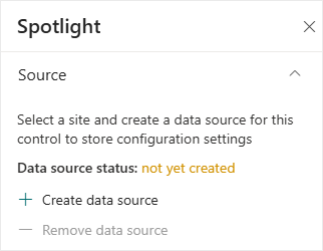
The Spotlight app uses a **background SharePoint list** to log the users who have dismissed the announcement. Whilst you won’t need to interact with this list, the lists are essential for the app to function, to ensure the Spotlight isn't shown again to users who have dismissed it.
1. In the property pane, select the **Create data source** button, which will create a data source on your site.
**Note:**
- Only users in the Site Owners group can create a data source.
- You can only create **one data source per site**.
---
### Choosing a layout
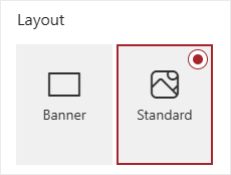
Spotlight supports two layouts:
- **Standard layout** – A full-height, high-impact layout ideal for major announcements
- **Banner layout** – A more compact option for subtle but noticeable messages
You can switch layouts either from the **property pane**, or directly from the **toolbar** on the web part.
---
### Adding text content
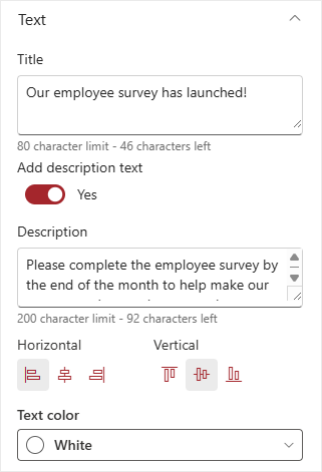
You can add the following text elements to Spotlight:
- **Title** – The primary message
- **Description** – Optional supporting text for additional context
The Description is turned off by default, but you can enable it in the property pane if you need more space to explain the message.
You can also control how the text appears, including:
- **Horizontal alignment** – Left, center, or right
- **Vertical alignment** (Standard layout only) – Top, center, or bottom
- **Text color** for the title, description, and call to action, using your SharePoint theme colors or standard SharePoint colors
---
### Adding a background color or image
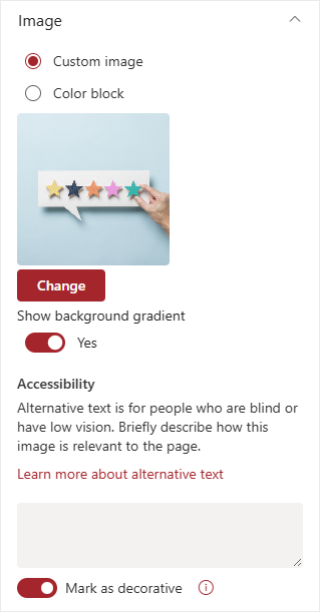
By default, Spotlight uses a color block background. Available colors include:
- Your SharePoint site theme colors
- Standard SharePoint colors
Alternatively, you can add a custom background image. When using an image, you can:
- Enable or disable a **background gradient** to improve text readability
- Add **alt text** to support accessibility requirements
---
### Adding a call to action
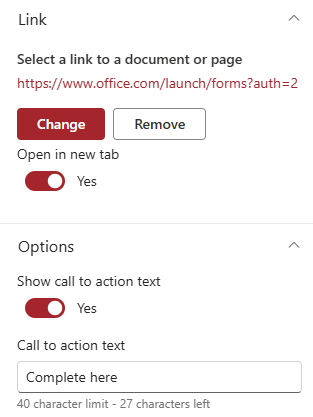
Spotlight is designed to drive action. You can:
- Add a link to a page, document, or external URL
- Choose whether to display call to action text, and if enabled, customize the text directly in the property pane
- Decide whether the link should open in a new tab
---
### Managing dismissals
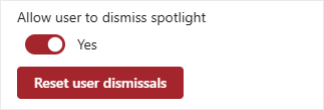
Spotlight can be made **dismissible** so users can hide messages once they’ve acted on them.
- When enabled, a **dismiss (X) icon** appears in the top-right corner of the web part.
- Dismissing hides Spotlight for that user, and page content beneath automatically moves up.
- You can **reset dismissals for all users** from the property pane to show the same Spotlight message again.
Turning the off "Allow user to dismiss spotlight" setting removes the dismissal icon, keeping Spotlight always visible to users.
---
### Audience targeting
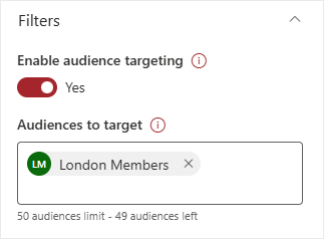
Spotlight supports SharePoint audience targeting.
When enabled, you can target Spotlight announcements to specific groups of users, ensuring the message is only shown to the most relevant audience.
---
### Related articles
- [Frequently asked questions](https://support.accelerator365.com/en/spotlight-frequently-asked-questions?hsLang=en)
- [Use cases & best practices](https://support.accelerator365.com/en/spotlight-use-cases-best-practices?hsLang=en)
- [Release notes](https://support.accelerator365.com/en/spotlight-release-notes?hsLang=en)
- [Technical details](https://support.accelerator365.com/en/spotlight-technical-details?hsLang=en)
- [Getting started](https://support.accelerator365.com/en/getting-started?hsLang=en)
- [Apps](https://support.accelerator365.com/en/apps?hsLang=en#main-content)
- [Accordion](https://support.accelerator365.com/en/apps?hsLang=en#accordion)
- [Advent Calendar](https://support.accelerator365.com/en/apps?hsLang=en#advent-calendar)
- [Alerts](https://support.accelerator365.com/en/apps?hsLang=en#alerts)
- [Anniversaries](https://support.accelerator365.com/en/apps?hsLang=en#anniversaries)
- [Audience Subscription](https://support.accelerator365.com/en/apps?hsLang=en#audience-subscription)
- [Back to Top](https://support.accelerator365.com/en/apps?hsLang=en#back-to-top)
- [Before and After](https://support.accelerator365.com/en/apps?hsLang=en#before-and-after)
- [Carousel](https://support.accelerator365.com/en/apps?hsLang=en#carousel)
- [Countdown Calendar](https://support.accelerator365.com/en/apps?hsLang=en#countdown-calendar)
- [FAQ](https://support.accelerator365.com/en/apps?hsLang=en#faq)
- [Gauge](https://support.accelerator365.com/en/apps?hsLang=en#gauge)
- [Glossary](https://support.accelerator365.com/en/apps?hsLang=en#glossary)
- [Image Map](https://support.accelerator365.com/en/apps?hsLang=en#image-map)
- [Launchpad](https://support.accelerator365.com/en/apps?hsLang=en#launchpad)
- [My Calendar](https://support.accelerator365.com/en/apps?hsLang=en#my-calendar)
- [My Contacts](https://support.accelerator365.com/en/apps?hsLang=en#my-contacts)
- [My Emails](https://support.accelerator365.com/en/apps?hsLang=en#my-emails)
- [Noticeboard](https://support.accelerator365.com/en/apps?hsLang=en#noticeboard)
- [Page Authors](https://support.accelerator365.com/en/apps?hsLang=en#page-authors)
- [Page Breadcrumbs](https://support.accelerator365.com/en/apps?hsLang=en#page-breadcrumbs)
- [Page Feedback](https://support.accelerator365.com/en/apps?hsLang=en#page-feedback)
- [Page Tags](https://support.accelerator365.com/en/apps?hsLang=en#page-tags)
- [Page Tour](https://support.accelerator365.com/en/apps?hsLang=en#page-tour)
- [Pages Directory](https://support.accelerator365.com/en/apps?hsLang=en#pages-directory)
- [People Directory](https://support.accelerator365.com/en/apps?hsLang=en#people-directory)
- [Poll](https://support.accelerator365.com/en/apps?hsLang=en#poll)
- [Rate My Day](https://support.accelerator365.com/en/apps?hsLang=en#rate-my-day)
- [Section Search](https://support.accelerator365.com/en/apps?hsLang=en#section-search)
- [Site Analytics](https://support.accelerator365.com/en/apps?hsLang=en#site-analytics)
- [Spotlight](https://support.accelerator365.com/en/apps?hsLang=en#spotlight)
- [Stock Price](https://support.accelerator365.com/en/apps?hsLang=en#stock-price)
- [Subscribe Now](https://support.accelerator365.com/en/apps?hsLang=en#subscribe-now)
- [Table of Contents](https://support.accelerator365.com/en/apps?hsLang=en#table-of-contents)
- [Tabs](https://support.accelerator365.com/en/apps?hsLang=en#tabs)
- [User Profile](https://support.accelerator365.com/en/apps?hsLang=en#user-profile)
- [Welcome](https://support.accelerator365.com/en/apps?hsLang=en#welcome)
- [Solutions](https://support.accelerator365.com/en/solutions?hsLang=en#main-content)
- [Content Manager Dashboard](https://support.accelerator365.com/en/solutions?hsLang=en#content-manager-dashboard)
- [Translator for SharePoint](https://support.accelerator365.com/en/solutions?hsLang=en#translator-for-sharepoint)
- [Look Book](https://support.accelerator365.com/en/look-book?hsLang=en)
- [Pricing](https://support.accelerator365.com/en/pricing?hsLang=en)
- [Technical](https://support.accelerator365.com/en/technical?hsLang=en#main-content)
- [General](https://support.accelerator365.com/en/technical?hsLang=en#general)
- [Maintenance](https://support.accelerator365.com/en/technical?hsLang=en#maintenance)
- [Troubleshooting](https://support.accelerator365.com/en/technical?hsLang=en#troubleshooting)
- [About](https://accelerator365.com/pages/about-us)
- [Blogs](https://accelerator365.com/blogs/updates)
- [Reply](https://www.reply.com/en)
- [Partners](https://accelerator365.com/pages/find-a-partner)
- [Contact](https://accelerator365.com/pages/contact)
- [License Agreement](https://accelerator365.com/pages/license-agreement)
- [Privacy Policy](https://www.reply.com/en/privacy-policy)
- [Service Level Agreement](https://accelerator365.com/pages/service-level-agreement)
[.png?width=60&height=29&name=Accelerator%20365%20Logo%20(Colour%20+%20No%20Text).png "Accelerator 365 logo")](https://accelerator365.com/)
Accelerator 365 by Reply