---
title: Getting started (Table of Contents)
description: Learn how to configure and use the Table of Contents app by Accelerator 365 to create a dynamic menu for long SharePoint pages, including various display options and a floating widget.
---
[Skip to content](https://support.accelerator365.com/en/table-of-contents-getting-started#main-content)
[.png?width=100&height=47&name=Accelerator%20365%20Logo%20(Colour%20+%20No%20Text).png)](https://support.accelerator365.com/?hsLang=en)
- [Home](https://support.accelerator365.com/en)
- [Getting started guides](https://support.accelerator365.com/en/getting-started)
- Product support
Show submenu for Product support
- [Apps](https://support.accelerator365.com/en/apps)
- [Solutions](https://support.accelerator365.com/en/solutions)
- [Look Book support](https://support.accelerator365.com/en/look-book)
- [Pricing support](https://support.accelerator365.com/en/pricing)
- [Technical support](https://support.accelerator365.com/en/technical)
- [Accelerator 365 website](https://accelerator365.com/)
Open main navigation
Close main navigation
- [Home](https://support.accelerator365.com/en)
- [Getting started guides](https://support.accelerator365.com/en/getting-started)
- Product support
Show submenu for Product support
- [Apps](https://support.accelerator365.com/en/apps)
- [Solutions](https://support.accelerator365.com/en/solutions)
- [Look Book support](https://support.accelerator365.com/en/look-book)
- [Pricing support](https://support.accelerator365.com/en/pricing)
- [Technical support](https://support.accelerator365.com/en/technical)
- [Accelerator 365 website](https://accelerator365.com/)
- [Contact us](https://accelerator365.com/pages/contact)
[Contact us](https://accelerator365.com/pages/contact)
Hello, how can we help you?
- There are no suggestions because the search field is empty.
1. [Accelerator 365 Knowledge Base](https://support.accelerator365.com/en?hsLang=en)
2. [Apps](https://support.accelerator365.com/en/apps?hsLang=en)
3. [Table of Contents](https://support.accelerator365.com/en/apps?hsLang=en#table-of-contents)
# Getting started (Table of Contents)
## How to configure and use the Table of Contents app by Accelerator 365
The Table of Contents app helps users navigate long SharePoint pages by automatically generating a menu of headings. It creates a dynamic table of contents based on the headings used across your page, making pages like policies or guides easier to read.
### Jump to
- [Configuring the app for the first time](https://support.accelerator365.com/en/table-of-contents-getting-started#first-time-configuration)
- [Layout](https://support.accelerator365.com/en/table-of-contents-getting-started#layout)
- [Display](https://support.accelerator365.com/en/table-of-contents-getting-started#display)
- [Behavior](https://support.accelerator365.com/en/table-of-contents-getting-started#behavior)
- [Floating action button](https://support.accelerator365.com/en/table-of-contents-getting-started#floating-action-button)
- [Related articles](https://support.accelerator365.com/en/table-of-contents-getting-started#related-articles)
---
### Configuring the app for the first time
To add the Table of Contents app:
1. Select **Edit** on your SharePoint page.
2. Select **+ Add a new web part**, then choose the **Table of Contents** app.
3. Once added, the Table of Contents app will display in the Vertical layout with all headings from across your page automatically shown.
---
### Layout
The Table of Contents offers two layouts so you can choose the one that best fits your page style:
- **Vertical** (default)- displays headings in a hierarchical list. Ideal for pages with multiple heading levels, providing a clear overview of all sections.
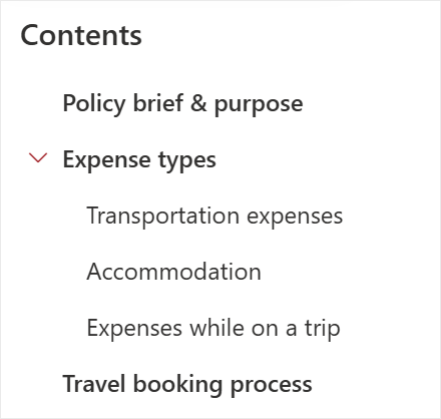
- **Horizontal** - displays headings in a tab-style layout. Useful when you want a compact, interactive view of your page sections.

---
### Display
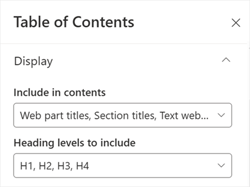
Control what content the Table of Contents picks up from your page.
- **Include in contents** - choose which sources the Table of Contents pulls headings from. All three are enabled by default:
- Web part titles from across the page
- Section titles (includes SharePoint collapsible section titles)
- Text web part headings
- **Heading levels to include** - choose which heading levels appear. All four levels are selected by default:
- Heading 1
- Heading 2
- Heading 3
- Heading 4
---
### Behavior
Additional behavior settings for the Table of Contents include:
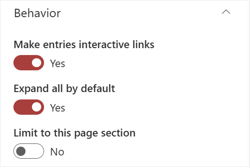
- **Make entries interactive links** - users can click any heading to jump directly to that section on the page.
- **Expand all by default** - in the Vertical layout, you can expand all levels by default so all headings are visible immediately.
- **Limit to this page section** (off by default) - limit the Table of Contents to only show headings from the current section.
---
### Floating action button
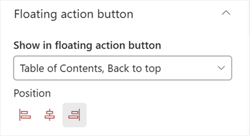
The floating action button allows the Table of Contents to stay visible as users scroll down the page.
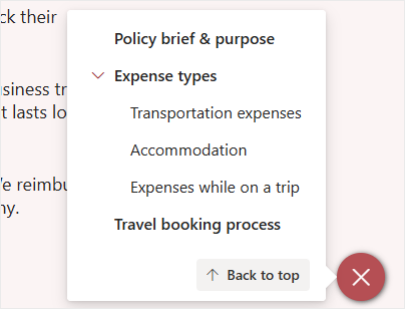
Settings include:
- **Show in floating action button** - choose what appears:
- Floating table of contents only
- Back to top button only
- Both the floating table of contents and the back to top features (default)
- **Position** - reposition the floating action button tobottom left, bottom center, or bottom right of the screen. Default position is bottom right.
---
### Related articles
- [Frequently asked questions](https://support.accelerator365.com/en/table-of-contents-frequently-asked-questions?hsLang=en)
- [Use cases & best practices](https://support.accelerator365.com/en/table-of-contents-use-cases-best-practices?hsLang=en)
- [Release notes](https://support.accelerator365.com/en/table-of-contents-release-notes?hsLang=en)
- [Technical details](https://support.accelerator365.com/en/table-of-contents-technical-details?hsLang=en)
- [Getting started](https://support.accelerator365.com/en/getting-started?hsLang=en)
- [Apps](https://support.accelerator365.com/en/apps?hsLang=en#main-content)
- [Accordion](https://support.accelerator365.com/en/apps?hsLang=en#accordion)
- [Advent Calendar](https://support.accelerator365.com/en/apps?hsLang=en#advent-calendar)
- [Alerts](https://support.accelerator365.com/en/apps?hsLang=en#alerts)
- [Anniversaries](https://support.accelerator365.com/en/apps?hsLang=en#anniversaries)
- [Audience Subscription](https://support.accelerator365.com/en/apps?hsLang=en#audience-subscription)
- [Back to Top](https://support.accelerator365.com/en/apps?hsLang=en#back-to-top)
- [Before and After](https://support.accelerator365.com/en/apps?hsLang=en#before-and-after)
- [Carousel](https://support.accelerator365.com/en/apps?hsLang=en#carousel)
- [Countdown Calendar](https://support.accelerator365.com/en/apps?hsLang=en#countdown-calendar)
- [FAQ](https://support.accelerator365.com/en/apps?hsLang=en#faq)
- [Gauge](https://support.accelerator365.com/en/apps?hsLang=en#gauge)
- [Glossary](https://support.accelerator365.com/en/apps?hsLang=en#glossary)
- [Image Map](https://support.accelerator365.com/en/apps?hsLang=en#image-map)
- [Launchpad](https://support.accelerator365.com/en/apps?hsLang=en#launchpad)
- [My Calendar](https://support.accelerator365.com/en/apps?hsLang=en#my-calendar)
- [My Contacts](https://support.accelerator365.com/en/apps?hsLang=en#my-contacts)
- [My Emails](https://support.accelerator365.com/en/apps?hsLang=en#my-emails)
- [Noticeboard](https://support.accelerator365.com/en/apps?hsLang=en#noticeboard)
- [Page Authors](https://support.accelerator365.com/en/apps?hsLang=en#page-authors)
- [Page Breadcrumbs](https://support.accelerator365.com/en/apps?hsLang=en#page-breadcrumbs)
- [Page Feedback](https://support.accelerator365.com/en/apps?hsLang=en#page-feedback)
- [Page Tags](https://support.accelerator365.com/en/apps?hsLang=en#page-tags)
- [Page Tour](https://support.accelerator365.com/en/apps?hsLang=en#page-tour)
- [Pages Directory](https://support.accelerator365.com/en/apps?hsLang=en#pages-directory)
- [People Directory](https://support.accelerator365.com/en/apps?hsLang=en#people-directory)
- [Poll](https://support.accelerator365.com/en/apps?hsLang=en#poll)
- [Rate My Day](https://support.accelerator365.com/en/apps?hsLang=en#rate-my-day)
- [Section Search](https://support.accelerator365.com/en/apps?hsLang=en#section-search)
- [Site Analytics](https://support.accelerator365.com/en/apps?hsLang=en#site-analytics)
- [Spotlight](https://support.accelerator365.com/en/apps?hsLang=en#spotlight)
- [Stock Price](https://support.accelerator365.com/en/apps?hsLang=en#stock-price)
- [Subscribe Now](https://support.accelerator365.com/en/apps?hsLang=en#subscribe-now)
- [Table of Contents](https://support.accelerator365.com/en/apps?hsLang=en#table-of-contents)
- [Tabs](https://support.accelerator365.com/en/apps?hsLang=en#tabs)
- [User Profile](https://support.accelerator365.com/en/apps?hsLang=en#user-profile)
- [Welcome](https://support.accelerator365.com/en/apps?hsLang=en#welcome)
- [Solutions](https://support.accelerator365.com/en/solutions?hsLang=en#main-content)
- [Content Manager Dashboard](https://support.accelerator365.com/en/solutions?hsLang=en#content-manager-dashboard)
- [Translator for SharePoint](https://support.accelerator365.com/en/solutions?hsLang=en#translator-for-sharepoint)
- [Look Book](https://support.accelerator365.com/en/look-book?hsLang=en)
- [Pricing](https://support.accelerator365.com/en/pricing?hsLang=en)
- [Technical](https://support.accelerator365.com/en/technical?hsLang=en#main-content)
- [General](https://support.accelerator365.com/en/technical?hsLang=en#general)
- [Maintenance](https://support.accelerator365.com/en/technical?hsLang=en#maintenance)
- [Troubleshooting](https://support.accelerator365.com/en/technical?hsLang=en#troubleshooting)
- [About](https://accelerator365.com/pages/about-us)
- [Blogs](https://accelerator365.com/blogs/updates)
- [Reply](https://www.reply.com/en)
- [Partners](https://accelerator365.com/pages/find-a-partner)
- [Contact](https://accelerator365.com/pages/contact)
- [License Agreement](https://accelerator365.com/pages/license-agreement)
- [Privacy Policy](https://www.reply.com/en/privacy-policy)
- [Service Level Agreement](https://accelerator365.com/pages/service-level-agreement)
[.png?width=60&height=29&name=Accelerator%20365%20Logo%20(Colour%20+%20No%20Text).png "Accelerator 365 logo")](https://accelerator365.com/)
Accelerator 365 by Reply