.png?width=100&height=47&name=Accelerator%20365%20Logo%20(Colour%20+%20No%20Text).png)
The Tabs app lets you display content in clearly defined, tabbed sections on a SharePoint page, making long or detailed information easier to scan and digest for your users.
Jump to
Configuring the app for the first time
To add the Tabs app:
-
Select Edit on your SharePoint page.
-
Select + Add a new web part, then choose the Tabs app.
-
Once added, the Tabs app will display as a placeholder and is ready for you to add content.
Adding a new tab
Tabs sections are the individual tabs areas within the app, which represent a separate section of content.
To add a tab:
-
Enter Edit mode on the app
-
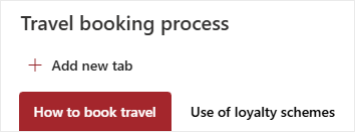
Click + Add new tab at the top of the app
-
Enter a title in the tab header
-
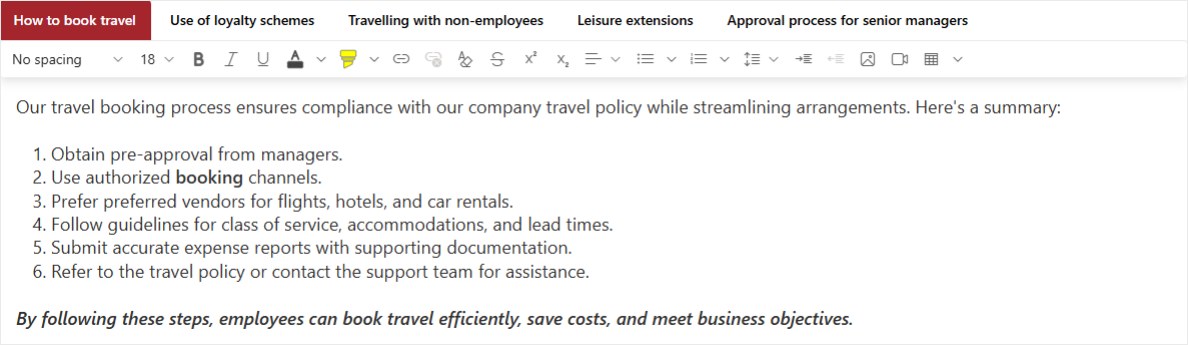
Add your content directly inside the Tabs tab. Each tab supports rich content, including:
- Formatted text
- Hyperlinks
- Images and Videos
- Tables
Organizing your tabs
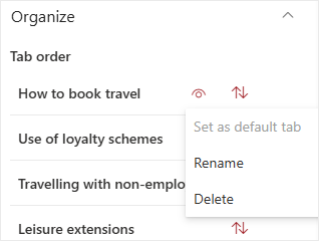
From the property pane, you can manage all your tabs:
- Reorder tabs using the drag handles
- Set as default tab – select a specific tab to display when the page loads
- Rename a tab either in the property pane or by double-clicking the tab title directly on the web part
- Delete a tab if it’s no longer needed