.png?width=100&height=47&name=Accelerator%20365%20Logo%20(Colour%20+%20No%20Text).png)
Once the Noticeboard is set up, any user can create and manage posts. This guide explains how users can contribute content and navigate existing posts.
Jump to
- Create a post
- Navigating categories
- Search for posts
- View and interact with posts
- Managing your posts
- Related articles
Create a post
-
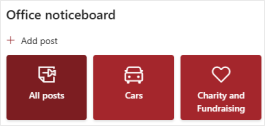
Click the Add post button on the Noticeboard web part.
-
A form will appear on the right side of the screen.
-
Complete the post details:
-
Title - enter a clear and descriptive title for your post. This is required.
-
Image - optionally add an image to make your post more engaging. You can select from existing images or upload a new one.
-
Details - add the main content of your post, up to 850 characters. Provide any information users need to know.
-
Related link - optionally include a relevant URL to guide users to more information.
-
Category - choose the category that best fits your post. Categories are created by the editor to help organize content.
-
Expiry date - if post expiration is enabled, select a date from the calendar picker for when the post should be automatically removed.
-
Terms and conditions - if this setting is enabled, review and accept the Noticeboard usage policy before submitting your post.
-
-
Click OK to post.
Note: depending on the Noticeboard settings, your post may require admin approval. If approvals are enabled, the post will go into a pending state.

Navigating categories
Users can filter and explore posts using categories at the top of the Noticeboard:
-
All posts - displays every post, if this option is enabled.
-
Specific categories - click a category to view only posts relevant to that category.
-
My posts - shows posts created by you, including their status (approved, pending, or rejected).
Search for posts
You can quickly find posts using the built-in search bar. Enter keywords and the Noticeboard will dynamically display matching posts.
View and interact with posts
Click any post to open it in the form on the right side. You can contact the poster by clicking their profile image and follow any links included in the post.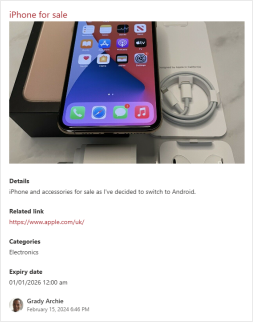
Managing your posts
In the My posts section, you can edit or remove any posts you’ve created, making it easy to keep your content up to date.