.png?width=100&height=47&name=Accelerator%20365%20Logo%20(Colour%20+%20No%20Text).png)
Post approvals allow intranet owners to control which Noticeboard posts are published by introducing an approval step before content goes live. This helps ensure posts are appropriate, accurate, and aligned with your intranet guidelines.
This guide explains how to enable approvals and how intranet admins can review and manage submitted posts.
Jump to
- Enable approvals for Noticeboard posts
- Approvals category
- Approving or rejecting posts
- Related articles
Enable approvals for Noticeboard posts
Approvals are enabled directly on the Noticeboard’s underlying SharePoint list.
-
Edit the page containing the Noticeboard web part.
-
In the web part property pane, select View posts list to open the background SharePoint list created when the data source was set up.

-
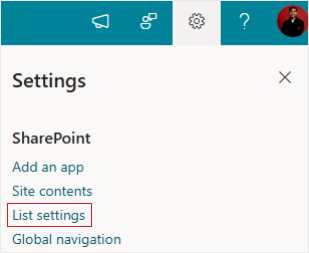
In the posts list, select the Settings icon in the top-right corner, then select List settings.
-
Select Versioning settings.
-
Under Content Approval, set Require content approval for submitted items to Yes.

-
Click OK to save your changes.
Once enabled, all new posts will require approval before being published.
Approvals category
After approvals are turned on, an Approvals category will appear in the Noticeboard for intranet admins. This provides a quick way to view and manage posts that are waiting for approval.
Any posts submitted after approvals are enabled will automatically appear here until they are reviewed.
Approving or rejecting posts
To review a post, an intranet admin can open it from the Approvals category.
From the post, select Approve/Reject and choose one of the following options:
-
Approved - The post is published and becomes visible to all users.
-
Rejected - The post is returned to the original poster and is only visible to the poster and intranet admins.
-
Pending - The post remains unpublished and visible only to the poster and intranet admins.
You can also add optional comments when approving or rejecting a post to provide feedback to the user.